Overview
This article will review:
Brand Level Reports
| Report Name | Purpose |
|---|---|
| Appointment Category Summary | Appointments summarized by organization, status, and revenue category. |
| Backlog by Organization | Current backlog of appointments and accepted proposals by organization and associated services. |
| Backlog by Postal Codes | Current appointment and proposal backlog by select postal codes. |
| Contact Category Summary | Contact counts by location and category (i.e., customer, prospect, etc). |
| Contact Counts | Contact counts by location and month. |
| Donation Parts | Donation part summaries for each organization. |
| End of Month | End of Month reports for all organizations. |
| Part Usage | Summarizes part usage from invoices and related appointments, by service agent for all locations. |
| Payments by Accounting Class | Payments summarized by location and accounting class. |
| Pictures Summary | Total number of pictures by organization. Click on the organization, then the pictures tab to view individual pictures. |
| Postal Code Conflicts | Show contacts in organizations with postal codes that are owned by other organizations. |
| Proposal Close Rates | Proposal close rates by organization. |
| Proposal Summary | Proposal statistics by status per organization. |
| Revenue by Accounting Class | Revenue summarized by location and accounting class. |
| Revenue by Category | Revenue and invoice counts summarized by location and revenue category. |
| Revenue by Lead Source | Revenue summarized by Channel and Campaign for all locations. |
| Revenue by Organization | Revenue by organization, grouped by revenue category or service. |
| Revenue Pivot Grid |
|
| Reworks | Rework performance for the brand. |
| Service Availability Report | Displays next available dates for active services. |
| Service Expiration | Number of contacts with active, expired, or no service at all. |
| Service/Part Category Revenue | Invoiced service/part category revenue and counts by organization. |
| Users/Logins | User details and login activity by organization |
| Utilization Report | Login and appointment volume activity in the past 30 days for each organization. |
Brand Level Downloads
To initiate the download:
- Filter your download by various criteria so you can view targeted data.
- Customize the information you want included in the download.
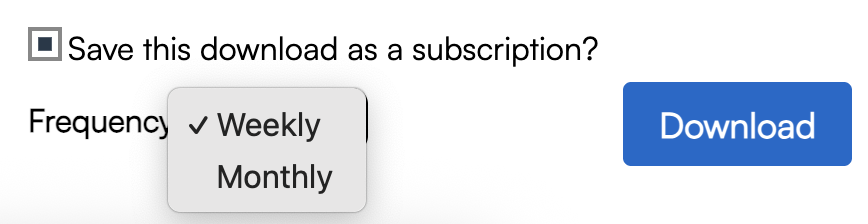
- If you want to automatically initiate this download on a regular basis, check the box to "save this download as a subscription."
- Click Download.
| Download | Description | Configurable Options |
|---|---|---|
| Contacts | Download contact details for all organizations. | Filter
|
| Contact Notes | Download contact notes for all organizations. |
|
| Invoices | Download invoice details by organization. This includes contact details (contact information, Channel/Campaign, Category, etc)and overview information about each invoice (service, total, balance due, tax, etc). | Statuses
|
| Invoice Lines | Download a list of individual line items used on each invoice, grouped by organization. | Statuses
|
| Appointments | Download appointments for all organizations | Types
Timeframes
Include in Download
|
| Payments | Download payment history for all organizations | Timeframes
Include
|
| Proposals | Download proposals for all organizations | Filter
Include
|
| Parts | Download details about Parts for each organization. |
None. |
| Recurring Billing | Download active recurring billing plans for all organizations | None. |
| Services | Download details about Services for each organization. |
None. |
| Feedback |
Download a list of feedback issues for all organizations.
|
Filter
|
Downloads with Custom Fields
Manual Downloads
When you perform a brand-level download, some of the columns included in the file depend on which organization you are clicked into when you start the download. This is especially true for custom fields.
In Dashboard > Downloads, if you download Contacts and include custom fields, the download will use the contact custom fields from the organization you are currently clicked into (including when impersonating another organization).
For example, if you're clicked into an organization with only a few custom fields, your download may not include custom field columns that exist in other organizations. On the other hand, if you're clicked into an organization with many custom fields, your download may include extra columns that don't apply to every organization.
Downloads from the API
For DataSubscriber downloads created through the API, the custom field columns are based on the brand's root organization. This is the Managing Organization, if one is set. Otherwise, it's the organization with the lowest ID in the brand.
Only active custom fields from the root organization are included in the download.
For values to appear correctly, the matching custom fields in each organization must have the same name and field type. If an organization renames a custom field or changes its field type, that field will no longer match the root organization, and its values won't appear in the download.
Best Practices
To make brand-level reporting more consistent:
- Use the same custom field names and field types across all organizations in the brand.
- When downloading from the Dashboard, click into the organization that contains the custom fields you want to use (typically the Franchise Template).
Download Subscriptions
Once you are ready to initiate the download, you can also check the box to save those settings as a Download Subscription and choose if you want to receive it weekly or monthly. Downloads generated by Report Subscriptions are retained for 7 days.